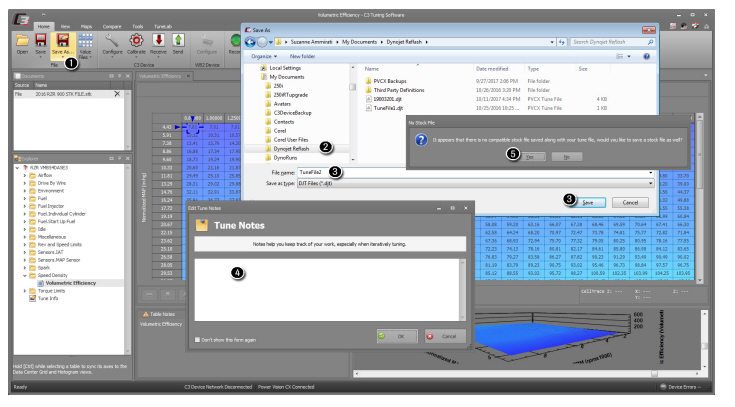
The Dynojet tune (.djt) and corresponding stock (.stk) file are paired by tune compatibility. When you save a tune file, and a stock file is not present, C3 Tuning will prompt you to save the stock file in addition to the tune file. To open the Edit Tune Notes form and save notes with your tune file, refer To Show Quick Notes.
1From the Home ribbon, click Save As.
2Browse to a location.
3Enter a file name for the tune and click Save.
4When Show Quick Notes is selected, the Edit Tune Notes form will open. Enter any notes you would like to save with your tune file. Refer To Show Quick Notes.
5When you save a tune file, and a stock file is not present, C3 Tuning will prompt you to save the stock file in addition to the tune file. Click Yes to save the stock file along with your tune file.
6Enter a file name for the stock file and click Save.