To Configure the Dyno Settings
The Dyno configuration dialog allows you to change settings and turn features on and off that affect the dyno operation.
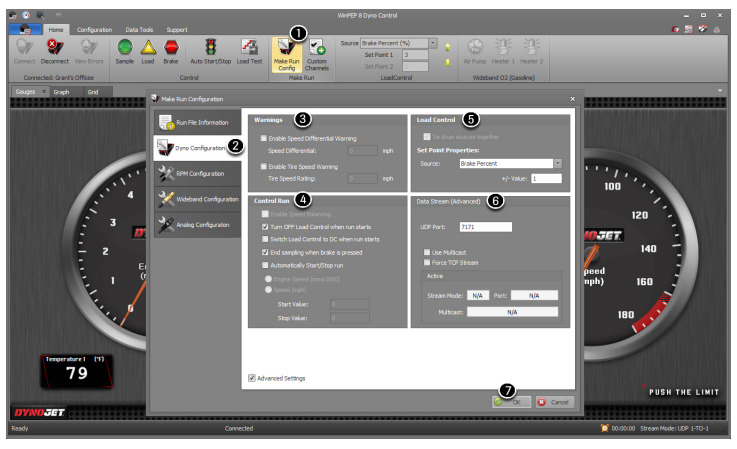
1From the Home ribbon, click Make Run Config.
2Click Dyno Configuration.
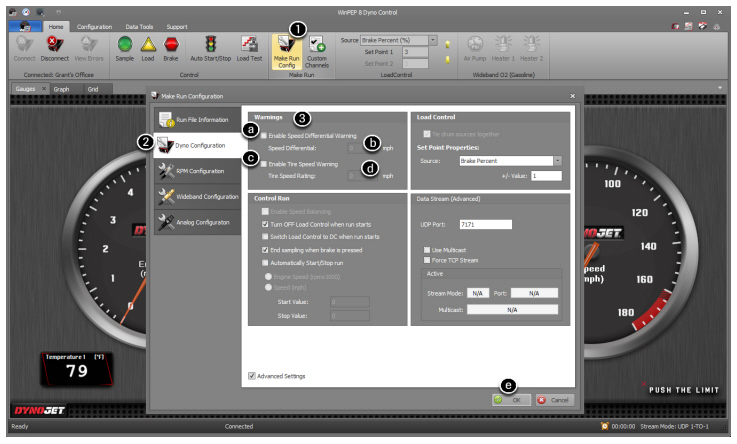
3To edit the Warnings:
3aSelect Enable Speed Differential Warning.
The speed differential warning only applies to 4WD dyno runs. If the front and rear drum speed becomes different by more than the number entered, a warning will appear on the computer screen.
3bEnter the mph in the Speed Differential text box.
3cSelect Enable Tire Speed Warning.
The tire speed warning applies to all dyno runs. If the speed of the dyno exceeds the number entered, a warning will appear on the computer screen.
3dEnter the mph in the Tire Speed Rating text box.
3eClick OK to apply your changes or Cancel to exit the window with no changes.
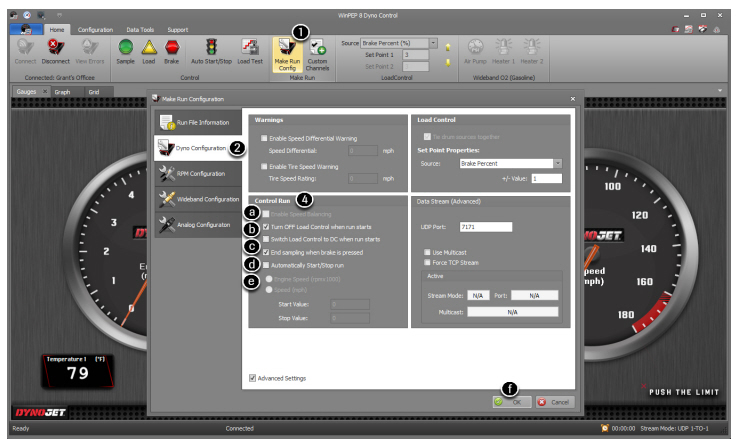
4To edit the Control Run Settings:
4aSelect Enable Speed Balancing.
Speed balancing applies to 4WD dyno runs. When enabled, if the speeds of the front and rear drum vary, load will be applied to the faster of the two, equalizing the speeds. Both drums must be equipped with eddy current brakes for speed balance to be utilized.
4bSelect Turn Off Load Control when run starts.
When enabled, starting sampling will turn the load control off. Use this feature if you switch between loaded tuning, and inertia only dyno runs often, to avoid having the load control on during your HP runs.
4cSelect Switch Load Control to DC when run starts.
When enabled, starting sampling will switch load control to duty cycle/brake percent.
4dSelect End Sampling When Brake Is Pressed.
When enabled, pressing the brake button while sampling a dyno run will stop the sampling as well as apply the dyno brake.
4eSelect Automatically Start/Stop Run.
The Dyno Control software can automatically start and stop sampling based on the data you enter. This feature allows you to make run graphs that line up perfectly since they will always be sampled over the same range. After setting up the parameters in the Make Run Config dialog, Start/Stop run can be turned on and off with the Auto Start/Stop button on the Home ribbon.
Enter the engine speed (RPM) or speed (mph) when sampling should start.
Enter the engine speed (RPM) or speed (mph) when sampling should stop.
4fClick OK to apply your changes or Cancel to exit the window with no changes.
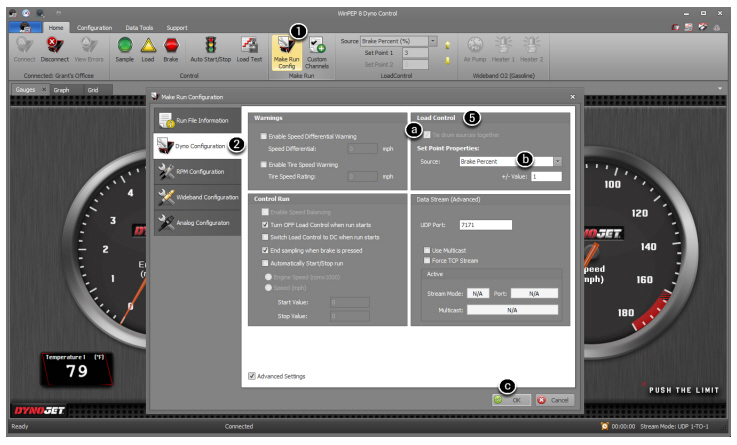
5To edit the Load Control settings:
5aSelect Tie drum sources together.
Tie drum sources together applies to 4WD runs only. For example, when "Tie drum sources together" is enabled, setting a speed step point for drum one, will automatically set the same set point for drum two.
5bUsing the drop-down menu, select the Source. This is the channel which load control will be applied.
The max value is the highest set point that will be allowed. For example if your source is RPM, you can set the maximum RPM of the engine being tested.
+/- Value is the amount the set point will be adjusted incrementally with the up/down buttons on the pendant.
5cClick OK to apply your changes or Cancel to exit the window with no changes.
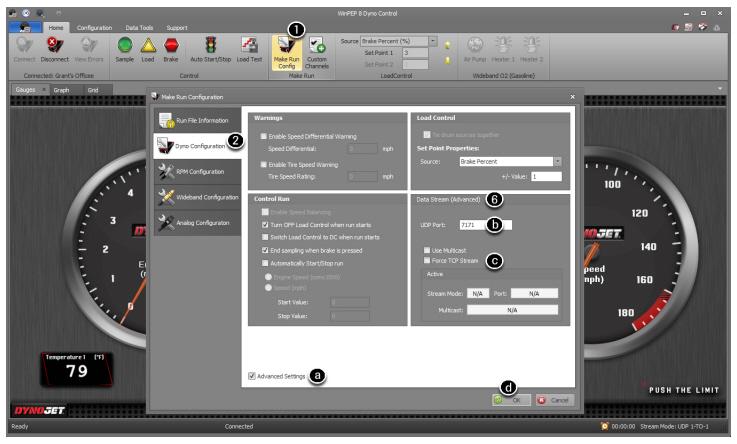
6To edit the Data Stream settings:
Data Stream allows you to configure how channels/CAN date is transmitted from the dyno to your computer.
6aSelect Advanced Settings.
6bEnter a UDP Port.
UDP is very fast with a low overhead and is set at the default. There is a very low probability for UDP to drop packets.
If UDP is selected but keeps getting connected with TCP instead, you will need to add a firewall exception allowing inbound UDP traffic on the port you select (default port is 7171).
6cSelect Force TCP Stream.
TCP is a lossless transport and is the automatic default method if a UDP connection cannot be established. TCP is more reliable with firewalls, but you will see more gauge stuttering with a higher transport overhead.
6dClick OK to apply your changes or Cancel to exit the window with no changes.
7Click OK to apply your changes or Cancel to exit the window with no changes.
Related Topics